Compare files
This is the view most people start with: two versions of the same file, next to each other, with every difference marked.
Open two files
Use File → Open, or simply drag two files onto the qDiff window. Need to reconcile three versions? Add a third pane — the same colour rules apply. Recent comparisons are kept on the welcome screen for next time.
What the colours mean
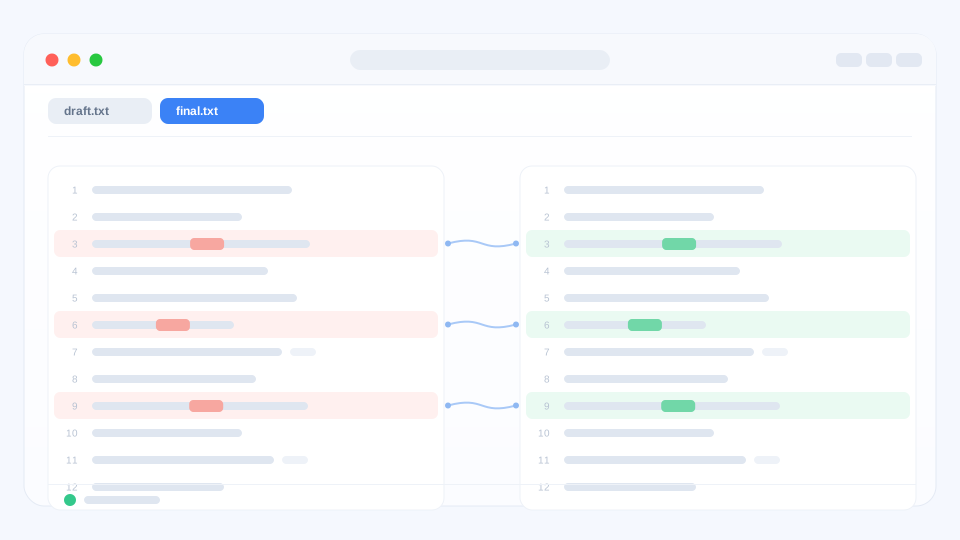
- Soft red — content on this side was removed or belongs to the older version.
- Soft green — content was added or belongs to the newer version.
- Deeper colour inside a line — exactly which words changed. A single changed word never disappears inside a whole coloured line.
Both sides scroll together, so the two versions always stay on the same line.
Move between changes
Click the slim map beside the text to jump anywhere in the file, or use the previous / next buttons (they have keyboard shortcuts too) to walk through changes one by one. The map also shows where you are in a long document.
Fix things as you go
Either side can be edited and undone. For each change you can copy it across, replace it or delete it — straight from the comparison, without opening another editor. When you are done, save as usual.
Share a picture
Select a change and export it as an image: a clean two-column picture that is easy to paste into a message or a review. The exported picture is free of any marking.
Next: compare whole folders.