Before you commit
A quick “what did I actually change?” is worth doing before every commit. Open a project folder in qDiff and the answer is already laid out.
Open a project folder
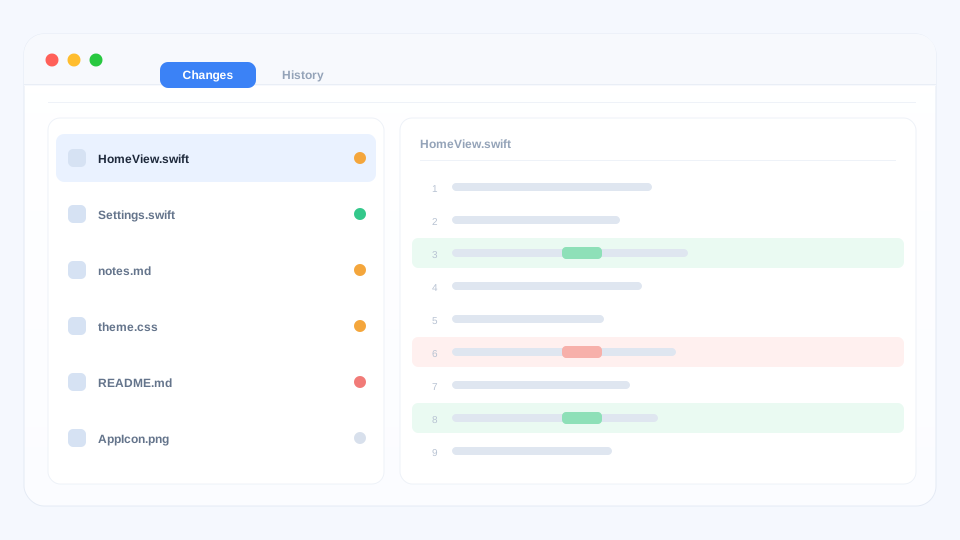
Choose the folder of a Git project from File → Open, or drag it onto the window. qDiff gathers the files you have touched into one list.
Read the list, then the changes
Each file is marked by what happened to it: new, modified or removed. Click one and the right-hand side shows exactly what changed inside, with the same colours and word-level highlights as a normal file comparison.
Work through them one by one — the list keeps your place, so nothing gets skipped in a long review.
Finish in the same window
When everything looks right, commit from here. You can also update, push, revert or resolve a conflict without leaving the comparison. No other app needs to be open, and no account is required.
Not a project folder?
Any ordinary folder still opens as a normal folder comparison — compare folders works everywhere.
Next: images, archives and more.