
Compare folders
When two folders should match — a working copy and a backup, an old export and a new one — comparing them one file at a time is a chore. qDiff shows the whole tree at once.
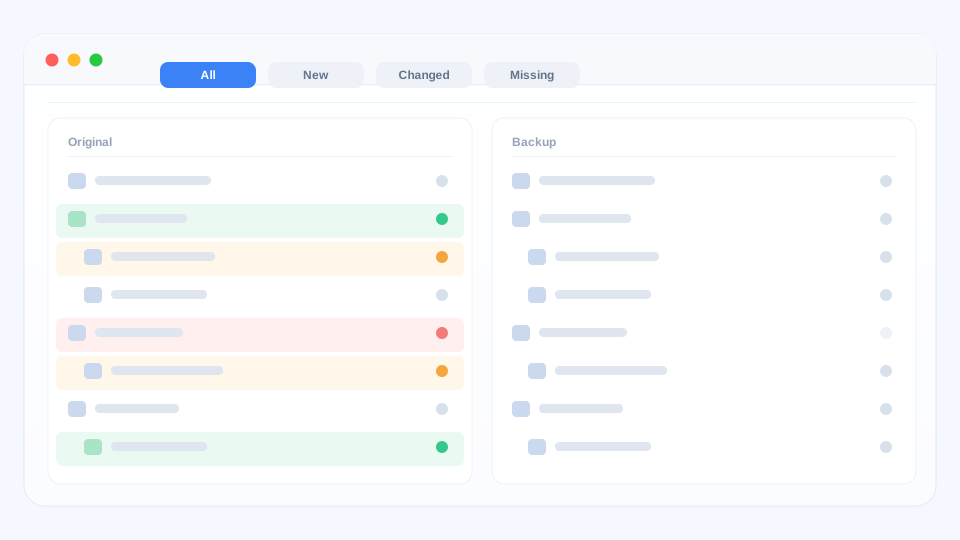
Open two folders
Drag two folders onto the window, or pick them from File → Open. Folders inside folders are compared too, so you see the complete picture.
Read the tree at a glance
- Green — a file that only exists on one side.
- Orange — the name matches but the content differs.
- Red — a file that is missing on the other side.
- Grey — the two sides match.
Only show what matters
Use the status filters to hide everything that already matches, or type part of a name to narrow the list. You can choose a quick name-only check or have qDiff read the contents as well — useful when a backup looks right but might be out of date inside.
Even large folders open quickly, so you are not left watching a progress bar.
Put things right from the list
Copy a file to the other side, remove a leftover, or sync a whole group — all from the same tree. There is no need to switch back to the Finder.
Fine to explore
Nothing is changed on disk until you choose an action. Browsing and filtering a comparison is completely safe.