More ways to compare
Text is only part of the story. qDiff opens several other kinds of content with the same side-by-side idea.
Pictures
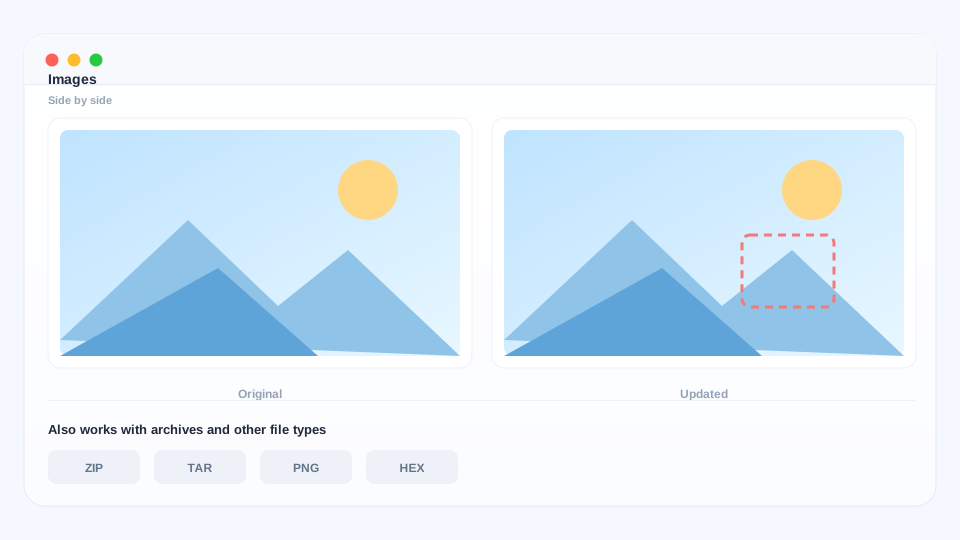
Put two images next to each other to compare them comfortably, or overlay them to see exactly where they differ — handy for design revisions and almost-identical photos.
Compressed archives
A .zip or .tar archive can be opened directly and compared like a folder. No unpacking, no temporary files to clean up afterwards.
Files that are not plain text
When two files look identical but behave differently, qDiff can compare them down to the smallest detail, including differences a text view cannot show.
Save a comparison as a picture
Select a change and export it as a clean, two-column image — ready to paste into a message, a document or a review. The picture has no markings added.
Make it yours
- Appearance — light and dark, following your Mac or set manually.
- Language — English, Simplified & Traditional Chinese, Japanese, German, Spanish and French.
- Fonts and shortcuts — adjust reading comfort and use the keyboard for the actions you repeat most.
- Recent comparisons — reopen something you looked at yesterday from the welcome screen.
Everything above is included in the free version.
Have a question? Check the FAQ.